Add or replace a Divi Image module picture
Select a screenshot to open it at full size. Use your browser's Back button to return to this tutorial.
Purpose
Change a standalone picture on a regular Divi page, or add one at an approved location. For a picture behind text, use the background picture tutorial. For article paragraphs, use the Image block tutorial.
Required role
Editor or Administrator with access to the intended regular page.
Prerequisites
-
Open the existing Divi page in Divi Builder, using Chrome. Follow Edit a regular Divi page safely; do not convert a Gutenberg article to Divi to change its picture.
-
Confirm the page, approved picture, and intended location.
- Follow Edit a regular Divi page safely to open its Visual Builder.
- Prepare the file and description using Picture preparation and alt text.
- Practice additions on a draft. Replacing a picture should keep its existing module.
Steps
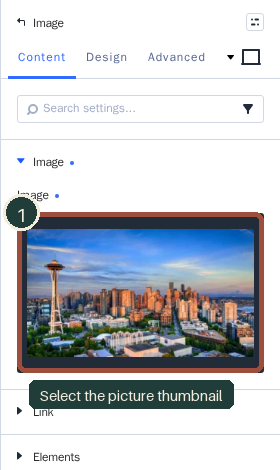
- For a replacement, double-click the intended picture to open its Image
module. In Content > Image, select the picture thumbnail (or its Edit control) to open the
chooser. Confirm the surrounding text and location first. Skip step 2.
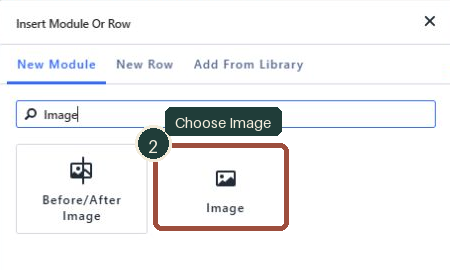
- For a new picture, select the Add Module plus at the approved position inside the intended column or group. In New Module, search for Image and select Image, then open its empty Image field. Do not select Before/After Image, create another row, or insert a duplicate of a picture you meant to replace.
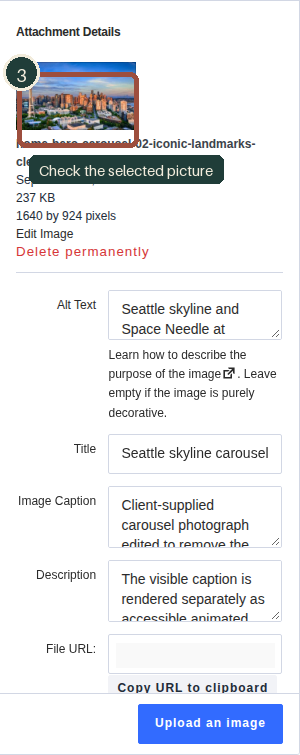
- Choose Media Library for an existing file, search by name, and select the intended thumbnail. For a new file, use Upload files and follow Upload a new picture. Check the selected attachment's dimensions. Keep the chooser open for the description checks in step 4.
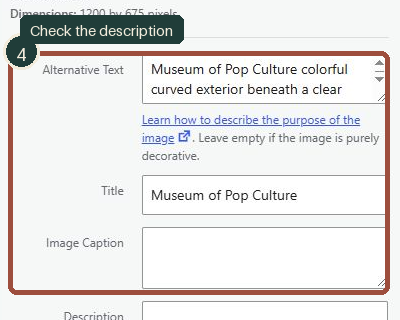
- Before confirming the chooser, check the picture's Alternative Text
against its purpose on this page.
The attachment's Title is a library label, not an accessible description.
If attachment details need an approved edit, use the separate
metadata-saving workflow
and reopen the chooser afterward. Module Save is not the attachment's Update.
The close-up below shows the same attachment fields in Media Library.
Then select Upload an image in the chooser; that button also selects an
existing library picture. Confirm the new thumbnail appears in the module.
After the chooser closes, check any existing module-specific description;
ask a maintainer if it differs from the intended description.
Preserve existing links, lightbox,
Design, Advanced, and responsive values unless the request includes them.
A Media Library caption does not automatically add a caption beneath an
Image module; preserve or update the separate approved caption text.
- Use the desktop and phone controls, then Preview. Check the actual picture, crop, proportions, nearby text, and any approved link or lightbox. Inspect each device image if different responsive sources already exist. Return with Exit Preview. To check another device, exit Preview first, select that device, then open Preview again.

- Select Save after review. Wait for completion, exit the builder, and
reopen the page outside the editor to confirm the result. Keep a practice
draft as a draft. Saving a published page updates the website immediately.

Expected result
The intended picture occupies the correct module and location, with useful alternative text and readable surrounding content on desktop and phone.
Common mistakes
- Adding a second module when the task was to replace the existing picture.
- Changing a background, shared preset, or template instead of the Image module.
- Stretching a small image, overwriting device-specific sources, or breaking an existing link.
- Assuming a library caption will appear automatically under the module.
- Deleting the old attachment while other pages still use it.
Recovery or escalation
Before saving, undo the change or leave without saving. After an incorrect save, record the page, module location, time, and intended picture and ask a maintainer to restore the appropriate revision. For crop or cache problems, use Picture troubleshooting.