Edit a regular Divi page safely
Purpose
Change text or an image on a regular Divi page, check the result at desktop and phone sizes, and save only the approved change. This workflow is for ordinary page content. It is not for the global header, footer, blog-post template, dynamic Home listings, search results, or the 404 layout.
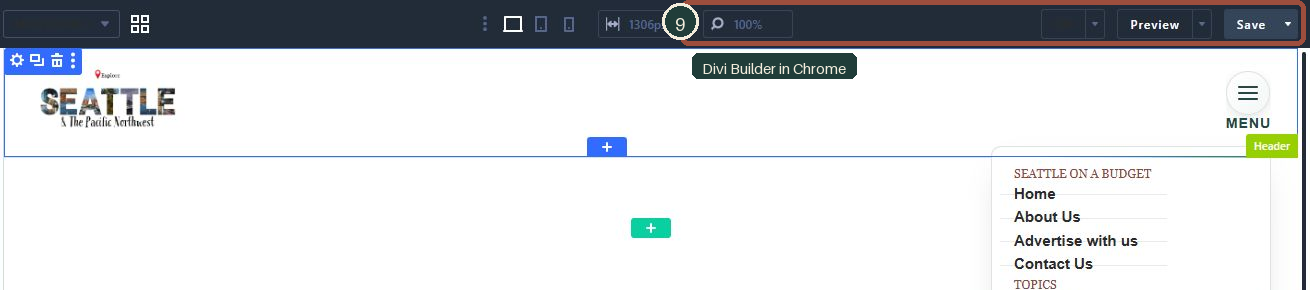
The builder overview below shows the page canvas and Preview and Save controls.
Required role
Editor or Administrator. If Edit With Divi is missing, do not switch the page to another editor. Ask a maintainer to check the account role and the page's Divi state.
Prerequisites
-
Sign in to website. Existing Divi pages can use Chrome.
-
Confirm the website and intended page before editing.
- Have the exact replacement copy or approved image ready.
- Know which single page and module should change.
- For a meaningful layout, style, or multi-module change, confirm that a current rollback backup exists before editing.
Steps
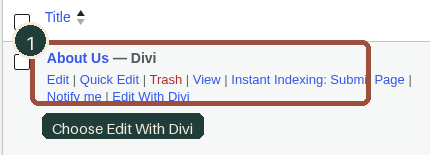
- Open Pages, find the intended page, and select Edit With Divi from that row. Do not use the similarly named action on another page.
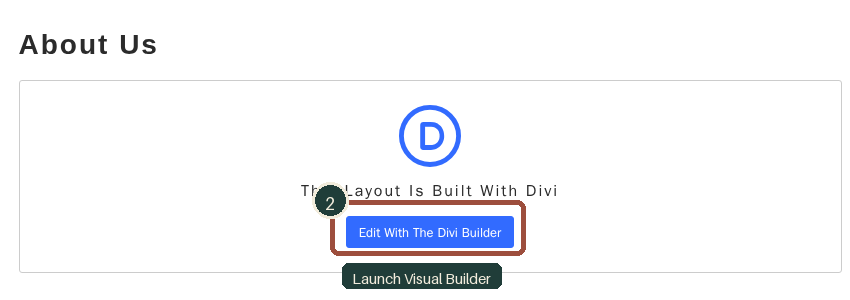
- If WordPress first opens the page editor, confirm the page title and select Edit With The Divi Builder. Do not select Return To Default Editor.
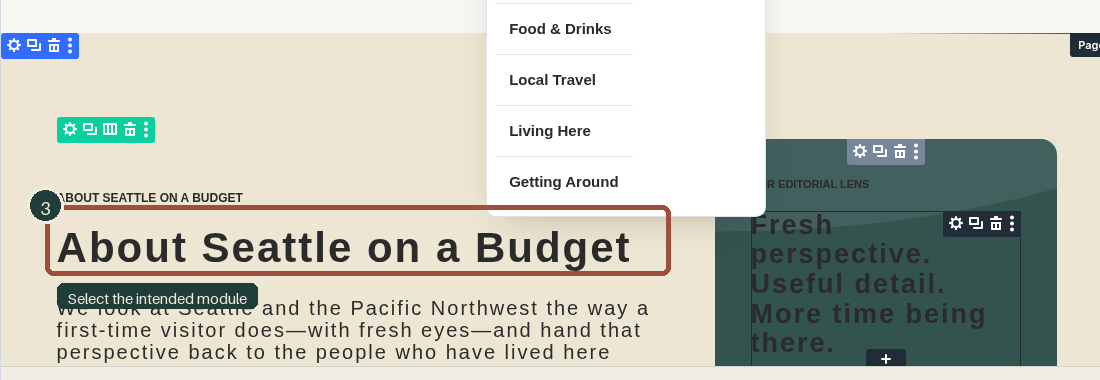
- In the Visual Builder, select the exact text, image, button, or other module that should change. Check the visible content and its position before opening settings.
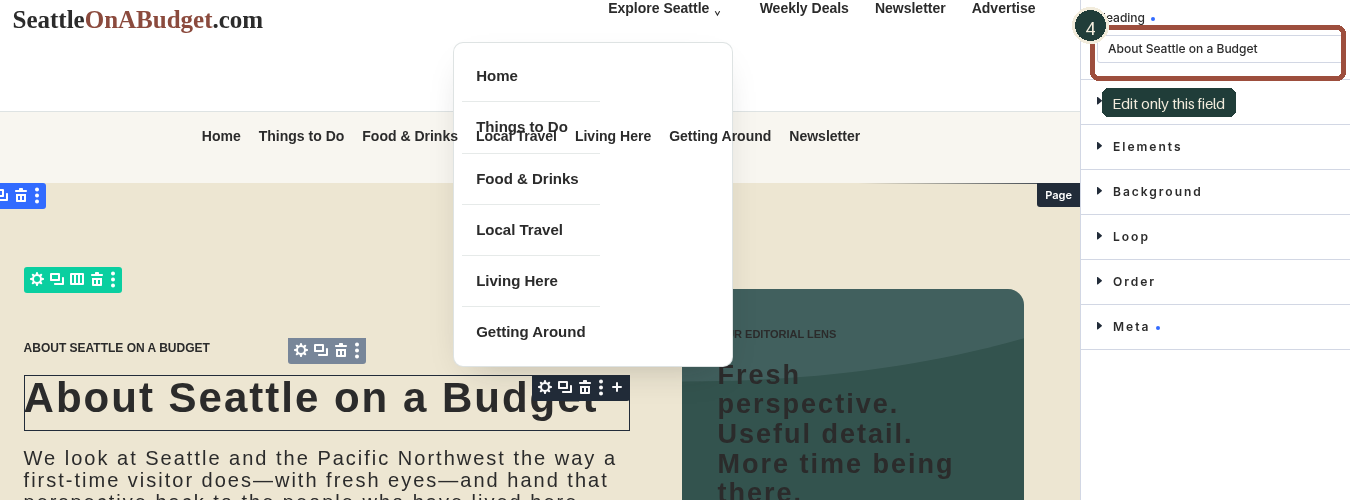
- Change only the approved field in the module's Content tab. Preserve the existing Design and Advanced values unless the request specifically includes them.
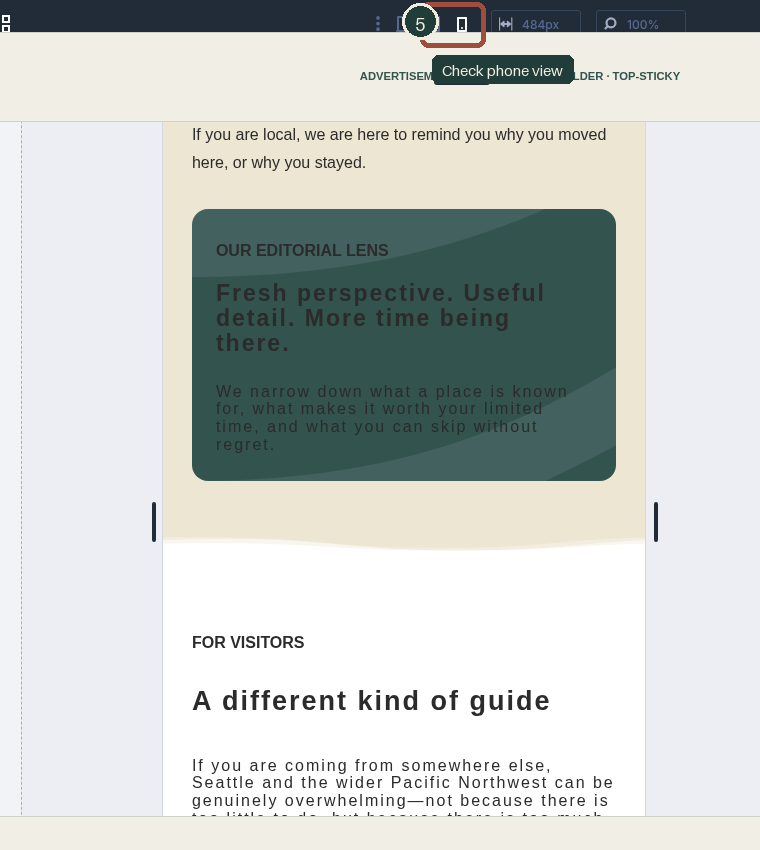
- Use the desktop, tablet, and phone controls in the top bar. At minimum, check desktop and phone for wrapping, overlap, clipped text, and horizontal scrolling.
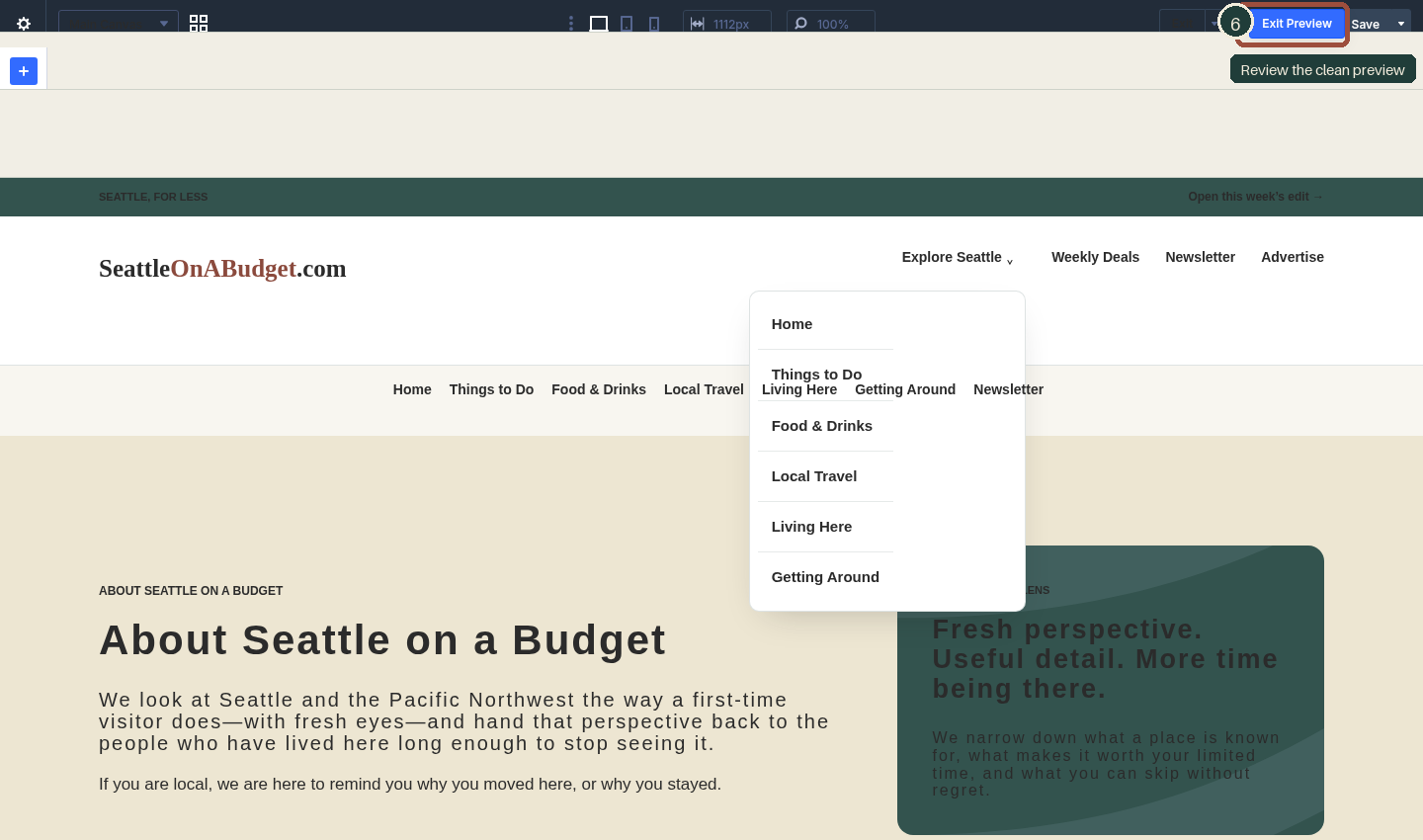
- Select Preview and review the page without module outlines. Scroll past the changed area and check nearby sections; then select Exit Preview to return to editing. Exit Preview before choosing another device, then open Preview again.
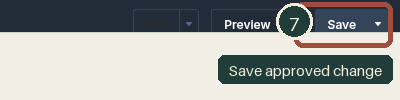
- Select Save only after the content and responsive checks are approved. On an already published page, this updates the website immediately. Save only the approved change after reviewing the preview.
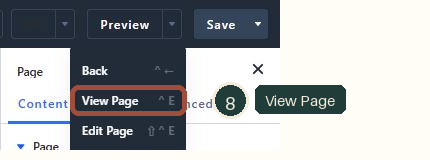
- After the approved save finishes, open the small dropdown arrow beside Exit in the top toolbar and choose View Page. This opens the page outside the builder. Confirm the changed item, navigation, footer, and one nearby link. You can also open the known page address in a separate tab.
Edit text and paragraphs in Divi
Use this method on a page already built with Divi. Open the correct page using steps 1–2 above, then double-click the paragraph you want to edit. Confirm that the settings panel says Text, rather than Heading or a global template.
In Content > Text > Body, choose Visual. Select only the words that need changing and type the approved replacement. To add a paragraph, place the cursor at the end of the intended paragraph and press Enter once. Keep ordinary paragraphs set to Paragraph in the formatting dropdown; preserve existing headings and links. Review pasted text for unexpected formatting.
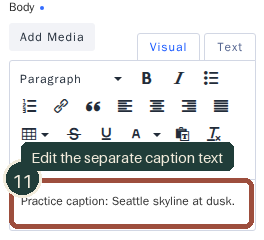
Check the changed words in the page canvas, then follow steps 5–8 above for device preview, review, saving, and reopening. For practice, use an approved draft and keep it unpublished. Editing a published page and selecting Save updates that website page immediately.
Add or replace a picture and check its caption
- Replace a picture: open its existing Image module and follow the replacement steps. Keep the same module and location rather than adding a duplicate.
- Add a picture: use the approved draft's Add Module control and choose Image, as shown in step 2 of the Image module tutorial. Use a standalone Image module for this workflow; the Text editor's Add Media control follows a different path.
- Edit a visible caption: find the separate Text module beside or below the picture and edit its Body using the paragraph method above. A Media Library caption does not automatically appear beneath a Divi Image module. If there is no caption module, ask the maintainer to confirm the approved placement before adding one.
- Check placement: use device controls and Preview to inspect the picture, caption, crop, nearby text, and existing links. Follow the Image module guide's save/reopen steps only after review. For a picture behind text, use the background tutorial.
Expected result
Only the approved module content changes. The page remains readable on desktop and phone, no nearby content shifts unexpectedly, and the normal website page shows the saved result.
For picture-specific controls, use Image module pictures or background pictures.
Common mistakes
- Selecting Return To Default Editor on a Divi page.
- Editing header or footer content from the page canvas. Those areas are global and are documented under Global Site Areas.
- Changing a shared preset, global color, or global font for a one-page request.
- Using Save as a preview. Preview first; save is the commit point for the website page.
- Treating the Divi phone control as proof by itself. Inspect the content that actually appears inside the phone-width canvas.
- Assuming a practice draft is visible publicly or that Save is only a preview.
Recovery or escalation
- If the wrong module was changed and the builder has not been saved, exit without saving and reopen the page.
- If a saved result is wrong, stop making additional edits. Record the page, affected module, approximate time, and expected copy, then ask a maintainer to restore the appropriate revision or rollback point.
- If text is visible publicly but cannot be selected in this page, it may belong to a Theme Builder template, dynamic listing, plugin, or helper. Do not recreate it as duplicate page text; use Global Site Areas or Troubleshooting.