Create or edit a blog post
Select a screenshot to open it at full size. Use your browser's Back button to return to this tutorial.
Purpose
Create or update an article without changing the shared Divi blog template. The WordPress post editor owns the article title, body, featured image, excerpt, category, and publication state. Divi owns the shared public presentation used by current and future posts.
Required role
Author or higher for assigned posts. Editor or Administrator is required to edit another author's post or change some publication settings. If a needed control is missing, ask a maintainer to check the role instead of changing the template or installing another editor.
Prerequisites
-
Sign in to website through Chrome. Edit articles in Gutenberg, the existing WordPress block editor.
-
Have approved article copy, the correct pillar category, and approved images.
- Prepare meaningful alternative text for informative images and a one-line caption when the image needs one.
- Confirm whether the item should remain a draft, enter review, or update an already published post.
- Saving an already published post updates the website immediately. Preview first and save only the approved change. Keep practice work as a draft.
Steps
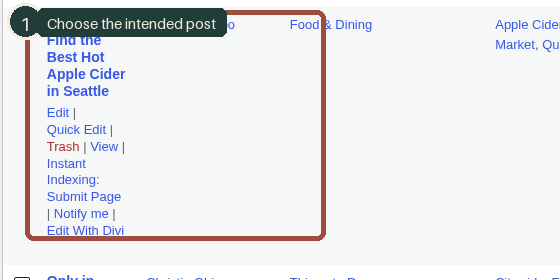
- Open Posts, locate the intended article, confirm its title, and select Edit from that row.
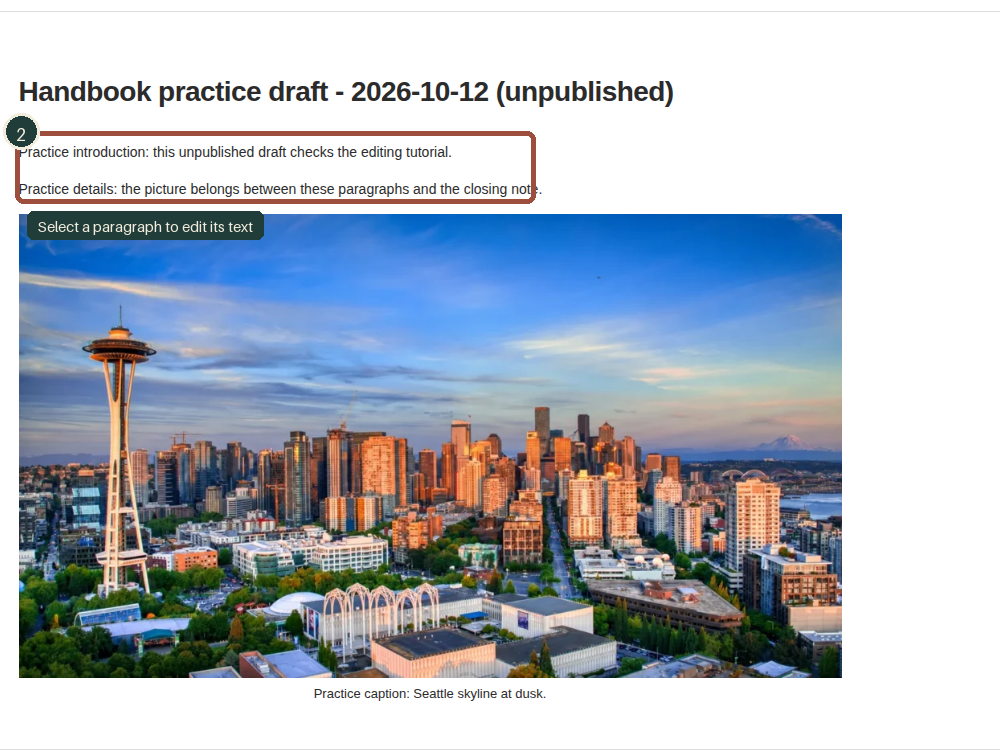
- In Chrome, edit the title and article body in Gutenberg. Select a paragraph to change its text; press Enter to start another paragraph. Keep headings in logical order and preserve existing links and image blocks. Do not select Use The Divi Builder: the public blog design comes from the shared Divi template, not a one-off post layout.
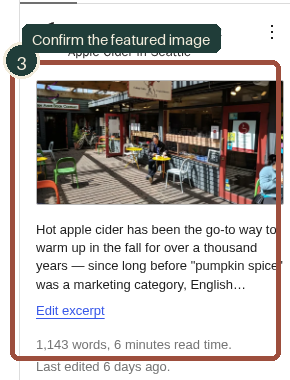
- In the post settings sidebar, open Featured image and confirm the correct image. Replace it only with an approved image that suits both the article and listing tiles.
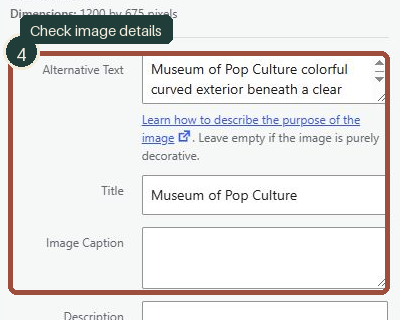
- For each article image, check its alternative text and visible caption. Before an approved attachment edit in Media > Library, check whether the file is reused elsewhere. Add meaningful Alternative Text plus a one-line Image Caption when required. Title is the Media Library label; it does not replace alt text. Use Save attachment details for Edit more details > Update, the reopen check, and existing-use overrides. Describe an informative image accurately and leave alt text empty only when the image is purely decorative. The current normal media screen does not expose the photo-credit metadata used by the template; send the approved credit to a maintainer. Until that metadata is added, the public template displays To be added rather than inventing a credit.
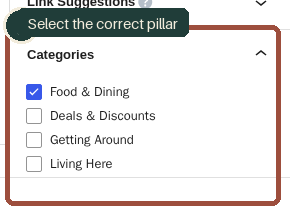
- Open Categories and select the one correct site pillar, such as Food & Dining. Clear Uncategorized when a real pillar applies. The category determines where the post appears in pillar and related-content listings.
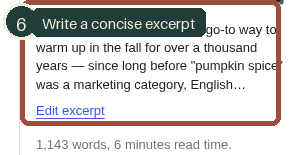
- Open Excerpt, select Edit, and write a short stand-alone summary. Describe the article's value without repeating the title or adding promises the article does not support.
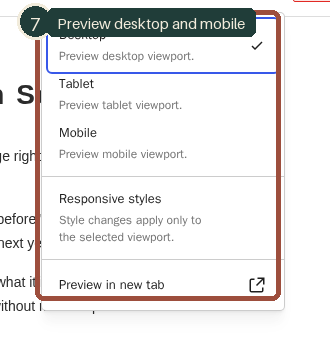
- Open the View menu and inspect Desktop and Mobile, then use Preview in new tab. If that does not open, finish saving the draft, then open its View Post link in a separate tab while signed in to website. On the rendered preview, check the title, metadata, article images, caption and credit lines, share control, CTA, and related content.
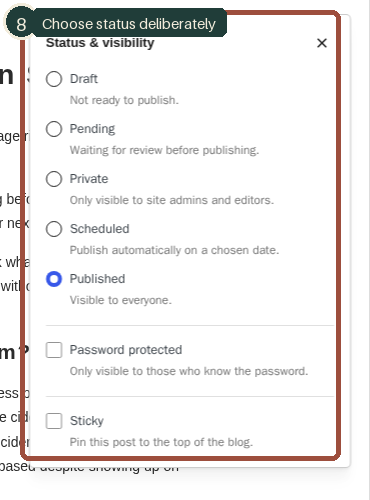
- Set the publication state deliberately: keep unfinished work as Draft, use Pending when it needs editorial review, and use Published only with approval. Preserve the existing publication date and time unless an approved request explicitly changes them.
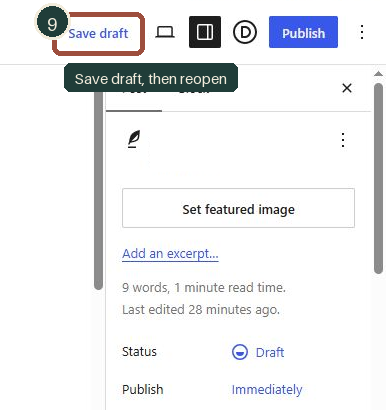
- For a draft, confirm Draft, then select Save draft after the content, category, excerpt, image, and preview checks pass. Wait for saving to finish, reopen the same post from Posts, and check that the text and pictures are retained and its status is still Draft. Do not select Publish for practice. For an approved edit to an already published post, Save is the commit point that updates the published article.
Expected result
The post has approved content, one correct pillar category, an accurate excerpt, appropriate image metadata, and the intended publication state. Its preview uses the existing global blog template and remains readable on desktop and mobile without a custom Divi layout inside the post.
For a detailed picture-only workflow, use Add or replace a featured image.
Common mistakes
- Selecting Use The Divi Builder and creating a one-off blog design.
- Assigning several pillar categories or leaving a finished post in Uncategorized.
- Using an image filename as alternative text, or stuffing keywords into it.
- Putting a photo credit into alternative text or the visible caption. Those fields have different purposes.
- Changing the original publication date during a normal copy edit.
- Treating the editor's device switcher as the final check instead of opening the public preview.
- Selecting Save on a published post before the review is complete.
Recovery or escalation
- If the wrong post was opened and nothing was saved, leave the editor.
- If an incorrect published change was saved, stop editing, record the post title, approximate time, and expected content, then ask a maintainer to restore the appropriate revision or rollback point.
- If the public layout, byline, date format, share control, CTA, related tiles, caption line, or credit line is wrong across posts, do not repair each post. Escalate it as a shared template issue.
- If a credit has been approved, give the maintainer the exact credit text and image filename or attachment URL. Do not store it in an unrelated field.