Create a new approved Divi page draft
Purpose
Create a safe page draft for an approved destination without adding it to the menu, publishing an unfinished layout, or changing a global Divi template.
Required role
Editor or Administrator. Authors should submit the approved page brief to an Editor or maintainer.
Prerequisites
- Approved page purpose, title, slug, copy, images, and intended menu location.
- Confirmation that a new Page—not a Post or a new pillar—is the right content type.
- A maintainer-approved existing page or saved layout to use as the visual base.
Steps
- Open Pages > Add New Page, enter only the approved page title, and confirm the document type in the top bar is Page.
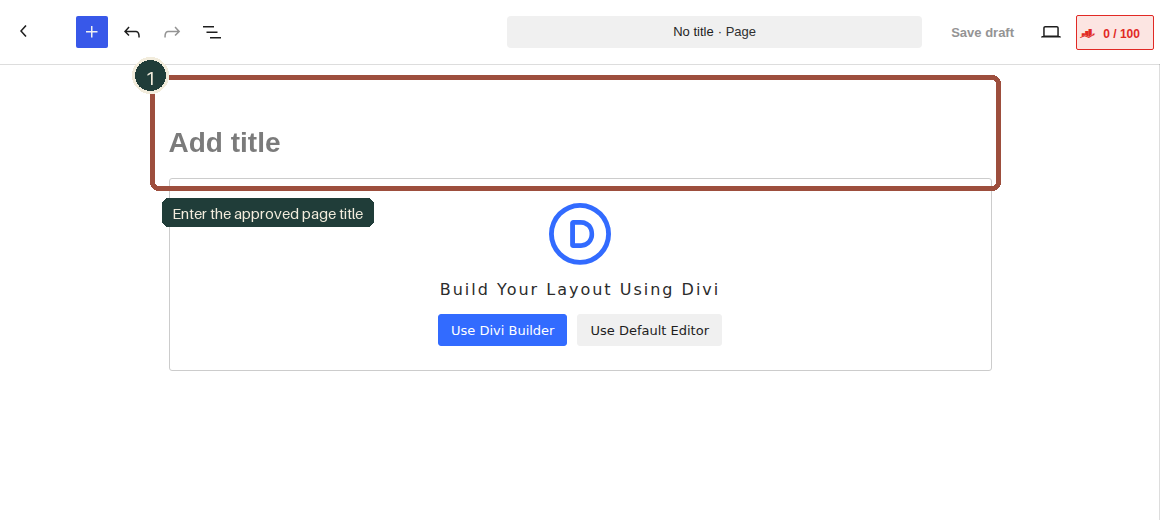
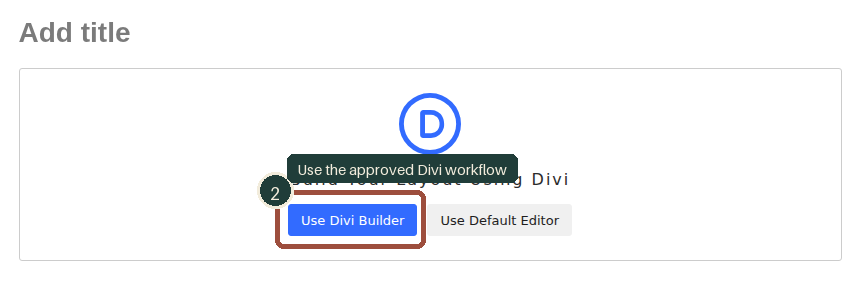
- Select Use Divi Builder. Do not use the default editor for a page that is intended to match the existing Divi site, and do not build from scratch when an approved page or saved layout is the required base.
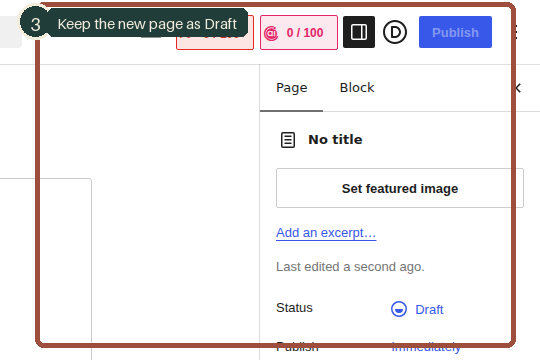
- Keep the item as Draft and select Save draft. Send the draft URL and approved visual base to the maintainer before adding modules, changing the slug, publishing, or adding the page to navigation. After the layout is attached, use Edit a regular Divi page safely to enter and verify the content.
Expected result
A recoverable unpublished Page draft exists with the approved title and Divi editing mode. It is not visible in the public menu, search results, pillar listings, or public website.
Common mistakes
- Creating a Post when the approved destination is a fixed Page.
- Publishing a blank or partly built page to obtain a preview URL.
- Building from scratch when the design should inherit an approved layout.
- Adding the draft to navigation before its slug, content, responsive layout, links, SEO, and approvals pass.
- Editing Theme Builder templates to create one ordinary page.
Recovery or escalation
- Leave an incomplete item in Draft and send its URL to a maintainer.
- If the wrong layout was selected, stop before saving Divi changes and reopen the draft after the correct base is confirmed.
- If the page was published or added to navigation accidentally, ask a maintainer to restore Draft status and remove only the unintended menu entry.